

Overview
Prysm comes to Unreal with an Editor Module that eases your workflow. This section describes this Editor Module.
Prysm’s Editor Module adds a pull-down menu to the main toolbar in your Unreal Editor, to the right of the Window menu.
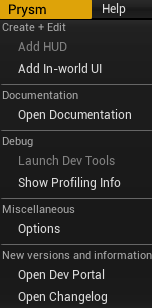
Here’s an overview of the functionality provided by each item in the menu:
Add HUD
Section titled “Add HUD”Changes the Game Mode’s HUD class to the one provided with Prysm - CohtmlGameHUD and adds a HTML file named hud.html to YourGame/Content/uiresources.
This item is only available if the current default Game Mode is a Blueprint class. To see or change your current default Game Mode, go to Edit -> Project Settings -> Maps and Modes -> Selected GameMode. Game Mode classes written in C++ can’t be changed from the Editor, which is why to use this option you would need to create a new Blueprint that inherits from AGameMode. For further information, please refer to the UE docs.
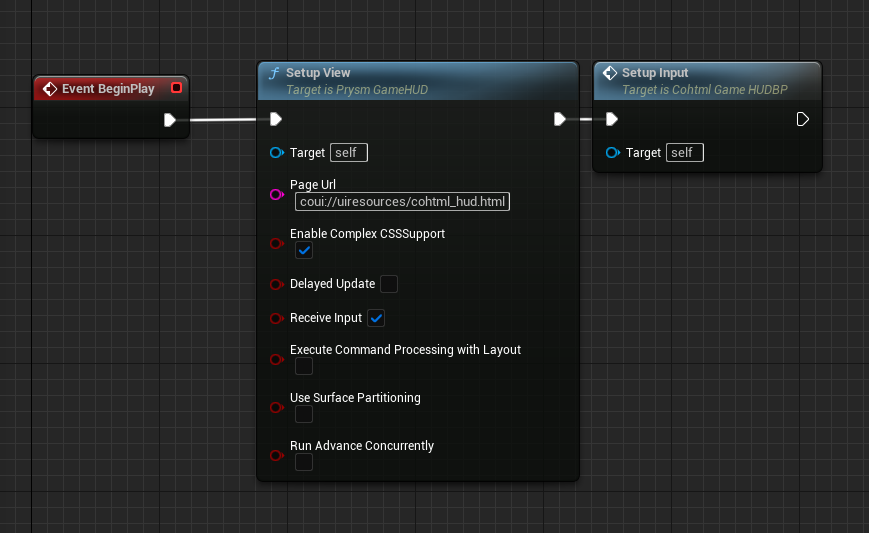
If you’d like to customize the HUD’s settings, you can do so with the following Blueprint:
Add In-world UI
Section titled “Add In-world UI”Adds a 3D Plane with an attached Prysm Component (UCohtmlComponent) to the scene, facing the current camera’s position.
Open Documentation
Section titled “Open Documentation”Opens this page.
Launch Dev Tools
Section titled “Launch Dev Tools”Opens Prysm‘s Developer Tools (also known as the Inspector) in Google Chrome. They allow you to inspect, debug and profile the contents of your UI in a straightforward manner. For more info on the Dev Tools head over to Prysm‘s native documentation.
Options
Section titled “Options”Opens Prysm‘s settings. You can also access them from Edit -> Project Settings -> Plugins -> Prysm.
Break Iterator option
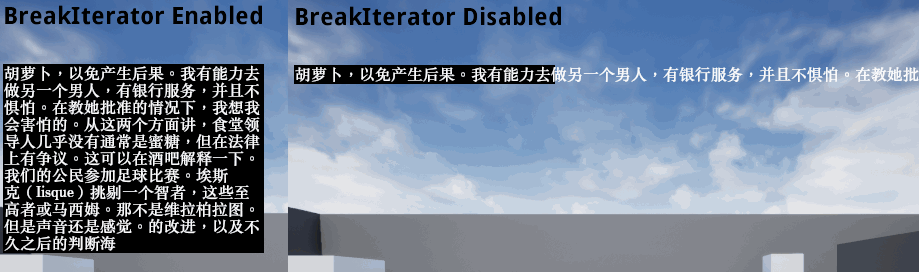
Section titled “Break Iterator option”The Break Iterator option controls the support for wrapping Asian language texts. You can find it in the Prysm plugin options.
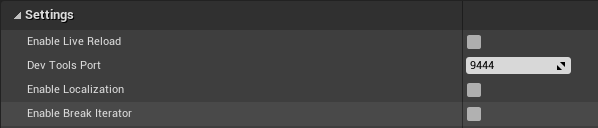
Below you can see an example with Chinese lorem-ipsum text inside a <div> with fixed width and black background, that shows how it looks with and without this option enabled.
© 2026 Coherent Labs. All rights reserved.